
Symptom
Unable to view Live View/Playback in Internet Explorer (IE) browser.
Or there is a popup error message as the picture below
Cause
- IE version is not 9/10/11 (upgrading is recommended)
- IE 64-bit is not supported
- Microsoft Foundation Class (MFC) Library is not installed yet (only Main Console is needed)
- IE blocked the site because it is not identified as a secure and trusted
- Plug-in(ActiveX) is not properly installed or disabled on IE
- Blocking of antivirus software to live view / playback
Solution
1. Choose IE browser 32-bit
IE browser 64-bit is not supported. User can use IE browser 32-bit in Windows Vista/7/8.1 64-bit OS.
2. Check your PC runs the MFC applications that are built with Visual Studio.
There are two different packs: VC Redist 2005 & 2008. If not installed yet, download it from below link
(1) VC Redist 2005
8.0.50727.61001
https://www.microsoft.com/en-US/download/details.aspx?id=26347
(2) VC Redist 2008
9.0.30729.5677
https://www.microsoft.com/en-us/download/details.aspx?id=26368
[Note] Main Console 7.0 is not necessary to install VC Redist 2005
3. Run IE as an Administrator
(1) Close IE
(2) Go to the path: C:\Program Files (x86)\Internet Explorer
(3) Right Click the iexplore icon> Run IE as an Administrator
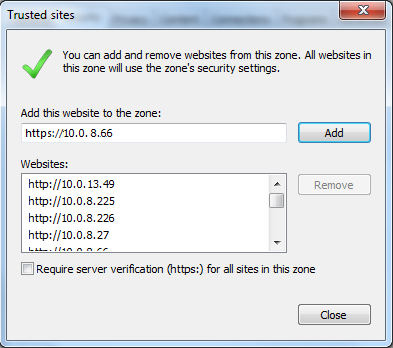
4. Add NVR IP address to trust site
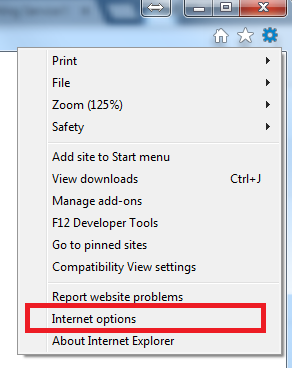
Tools(Alt+X) > Internet Options > Security > Trusted sites > Sites > Add site

5. Enable IE Compatible mode
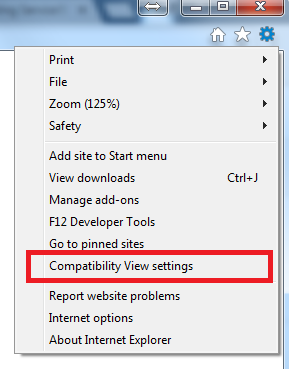
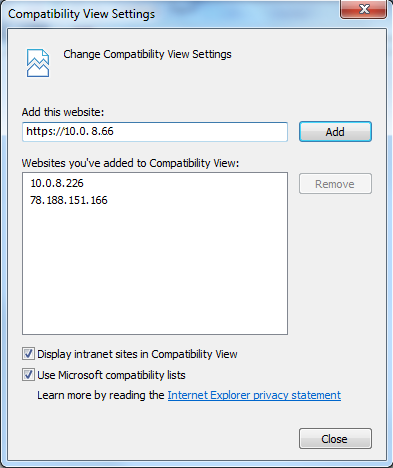
Tools(Alt+X) > Compatibility View settings > Add site
6. Remove the plugin and Install again
The web page for Mainvonsole/NVRmini communicates through an ActiveX component. The ActiveX component must be installed on your PC. Moreover, IE browser security settings must allow the ActiveX component for the web page to work correctly.
(1) Delete ActiveX
* Delete the NUUO configuration folder (C:\Users\[username]\AppData\Roaming\NUUO)
* For NVR Solo/Mini2, Delete NVSWebAll_2_2_0 folder ( C:\Users\Public\Documents\NVSWebAll_2_2_0)
* For NVR Solo/Mini2 (OEM), Delete NVRStandalone_2_2_0 folder ( C:\Users\Public\Documents\NVRStandalone_2_2_0)
* For Main Console, Delete both folders below
WebViewS_3_2_0 folder ( C:\Users\Public\Documents\WebViewS_3_2_0), and
WebRPB_3_2_0 folder ( C:\Users\Public\Documents\WebRPB_3_2_0)
(2) Enable ActiveX in IE security settings page
Tools(Alt+X) > Internet Options > Security > Internet > Custom Level
Please setup your [Security Settings] as follow:
• Enable “Allow previously unused ActiveX controls to run without prompt”

(3) Install ActiveX
Open IE > Allow pop up window > Install ActiveX
Select OK > Restart your PC to apply changes
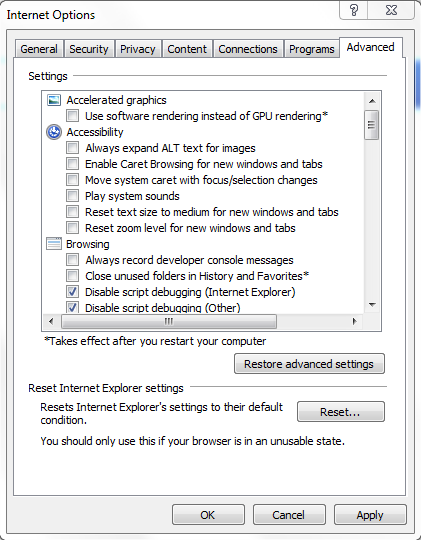
8. Turn off the antivirus and firewall temporarily
Comments
0 comments
Please sign in to leave a comment.